
Jump to Content
DaDaDocs for DynamicsGuidesDiscussionsAsk a Question
HomeGuidesChangelogDiscussions
GuidesDiscussionsAsk a QuestionLog InDaDaDocs for Dynamics
Guides
Log In
DaDaDocs Editor

Documentation

  • Install DaDaDocs
    • Update to the latest version
    • Activate Administrator Account in DaDaDocs
    • Authenticate user licenses with PDFfiller accounts
    • Connect DaDaDocs with SharePoint
    • Delete DaDaDocs app
  • DaDaDocs Editor
    • Mini Toolbar
    • Text
    • Hyperlink Tool
    • Checkmarks
    • Sign Documents
    • Add the Date
    • Add an Image
    • Erase
    • Highlight
    • Blackout
    • Text Box
    • Arrows
    • Lines
    • Draw
    • Sticky Notes
    • Comments
    • Spellchecker
    • Search the Text in PDFs
    • Settings
    • Fillable Fields
    • Add Watermark
    • View Changes and Versions
    • Rearrange Pages
    • Saving Documents
  • Templates
    • Create Templates
  • Share Templates
    • Share a template
    • Remove access to a shared template
  • Generate Document from a Template
  • Data Collection
    • Create Data Collection Template
    • Edit Template
    • Send a Data Collection Template out to Be E-Signed via SendToSign
    • Generate a link to your Data Collection Template via LinkToFill
  • SendToSign: Request Signatures
  • LinkToFill: Host Fillable Forms
  • Send by Email
  • DaDaDocs Integration with SharePoint
Powered by 

DaDaDocs Editor

Suggest Edits

You can edit, annotate and sign PDF attachments stored in Dynamics 365 objects with DaDaDocs powerful editor without leaving your Dynamics 365 organization.

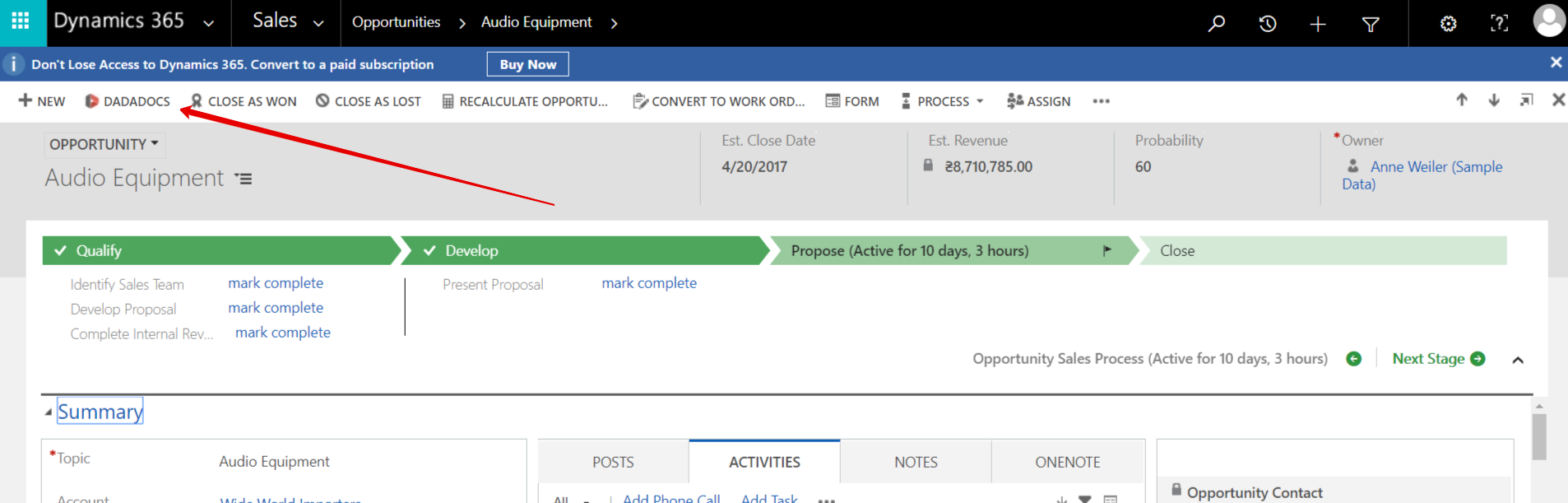
To start using DaDaDocs in your Dynamics 365 organization, on the needed object page click DADADOCS on the upper left.
1906

Select a document from the list and click Edit Document. Alternatively, double-click on any document or template to open it in DaDaDocs Editor.

To add a new document to edit, click Upload Document. You can upload any number of files at once.

Updated about 7 years ago